How to install and run Claude Code in VS Code
On November 24th one of my dev friends (hey Maciej!) told me I could run Claude Code in VS Code’s terminal. I had no idea. Shame on me I guess. Since then I’ve been building all the things I always wanted but never had a developer for.
Let me show you how to start using it. Install to first prompt in under 5 minutes.
Step 1: Open VS Code and the terminal
Open your project folder in VS Code. If you don’t have a project yet, create an empty folder somewhere and open that.
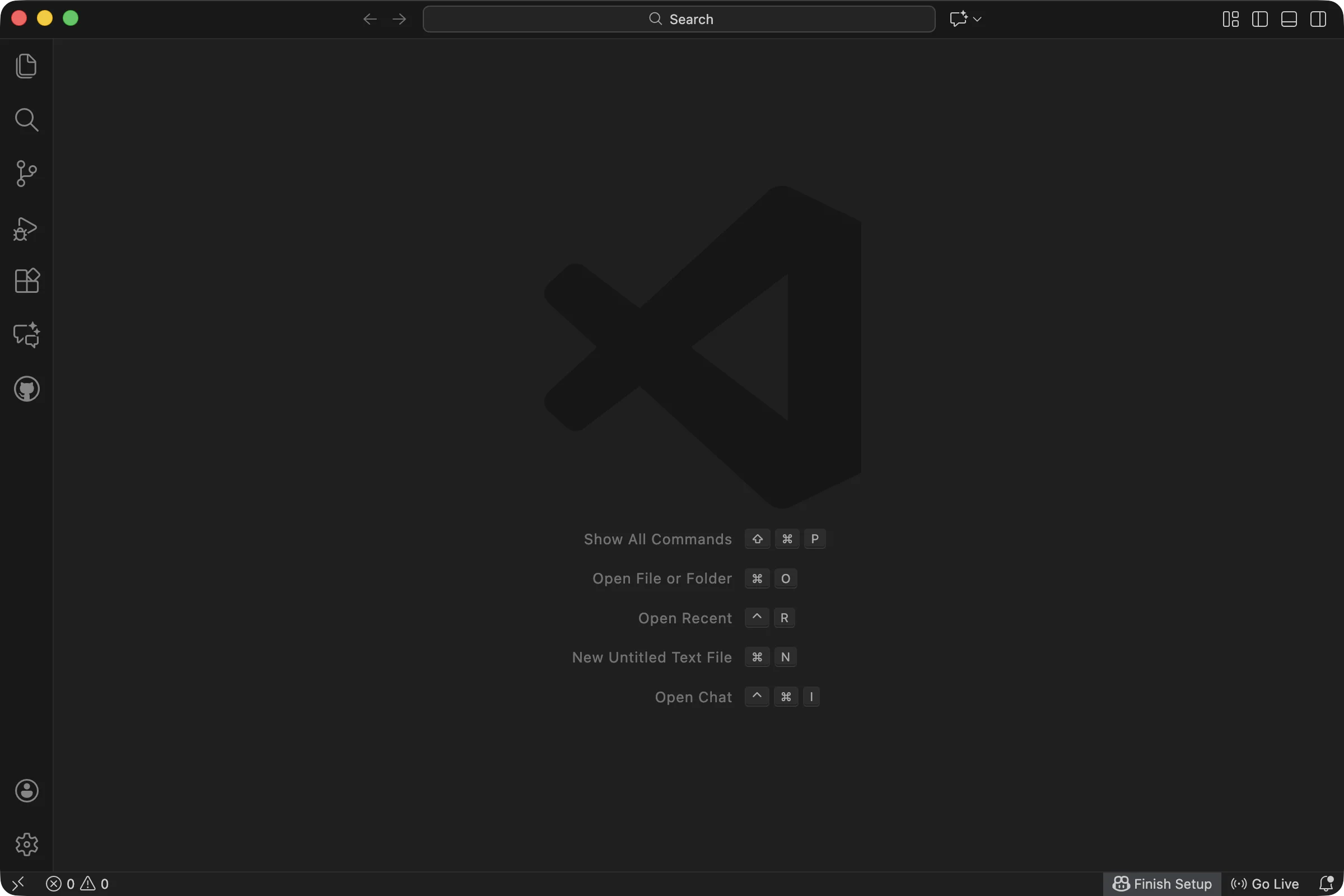
Pull up the terminal. Top menu: Terminal > New Terminal. Or just hit Ctrl+`.
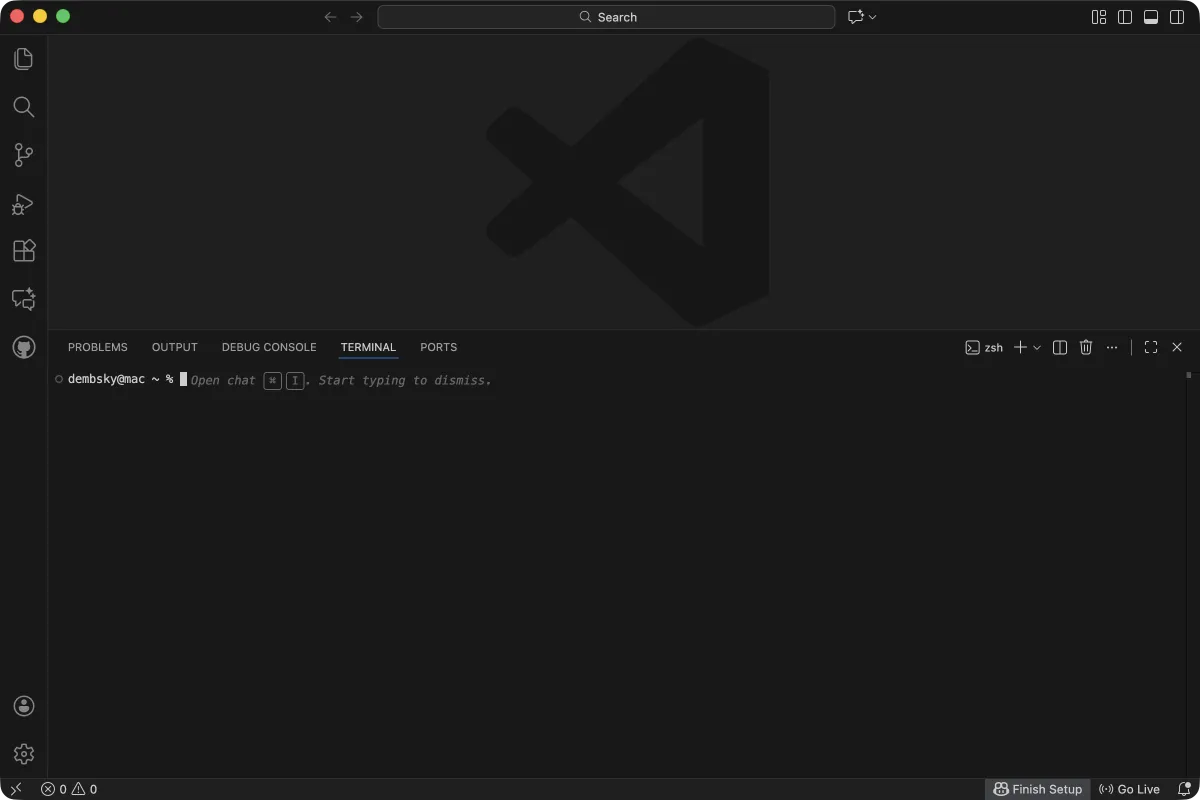
This terminal at the bottom is where everything happens. All the commands below go here.
Step 2: Install Claude Code
Same terminal. One command, nothing else to install first.
On Mac or Linux:
curl -fsSL https://claude.ai/install.sh | bashOn Windows (PowerShell):
irm https://claude.ai/install.ps1 | iexYou’ll see a few lines of output. When it stops and you get your cursor back, you’re good. Close and reopen VS Code so the terminal picks up the new command.
Step 3: Launch it
Same terminal. Type claude and hit Enter.
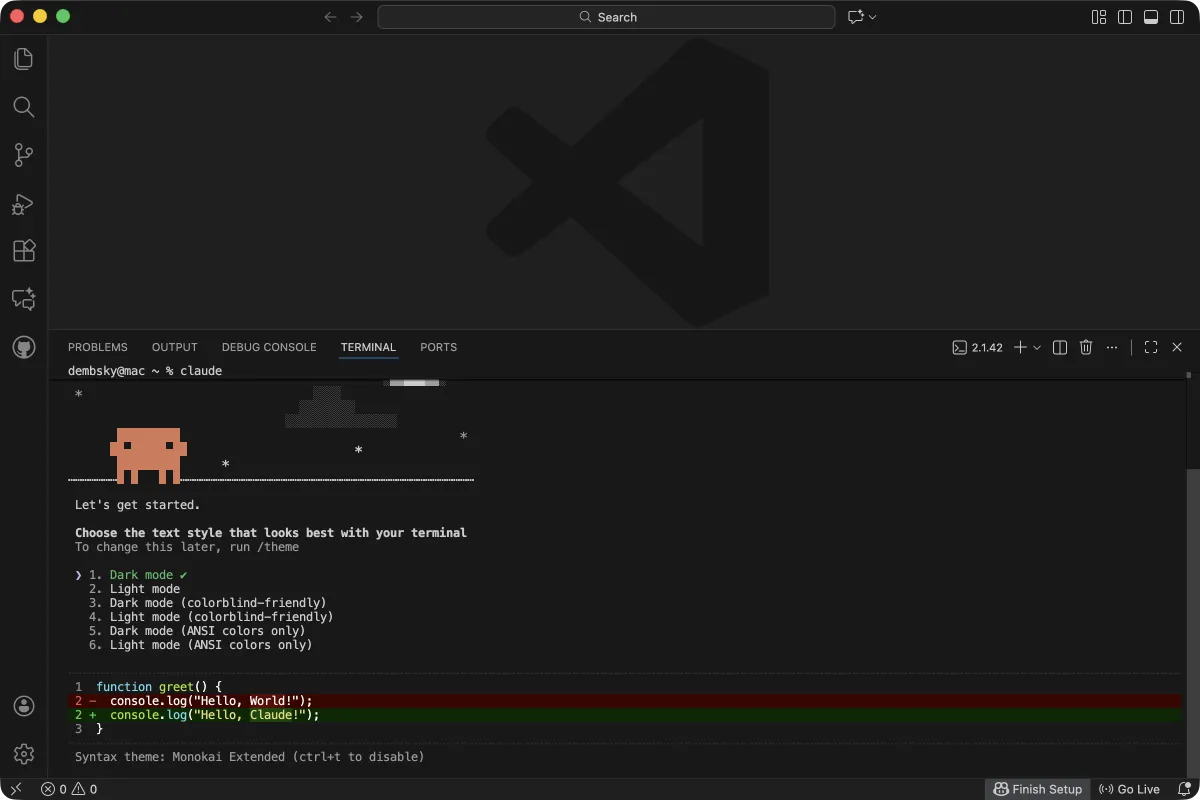
claudeFirst time you run it, there’s a quick setup. Takes about a minute.
It asks you to pick a color theme:
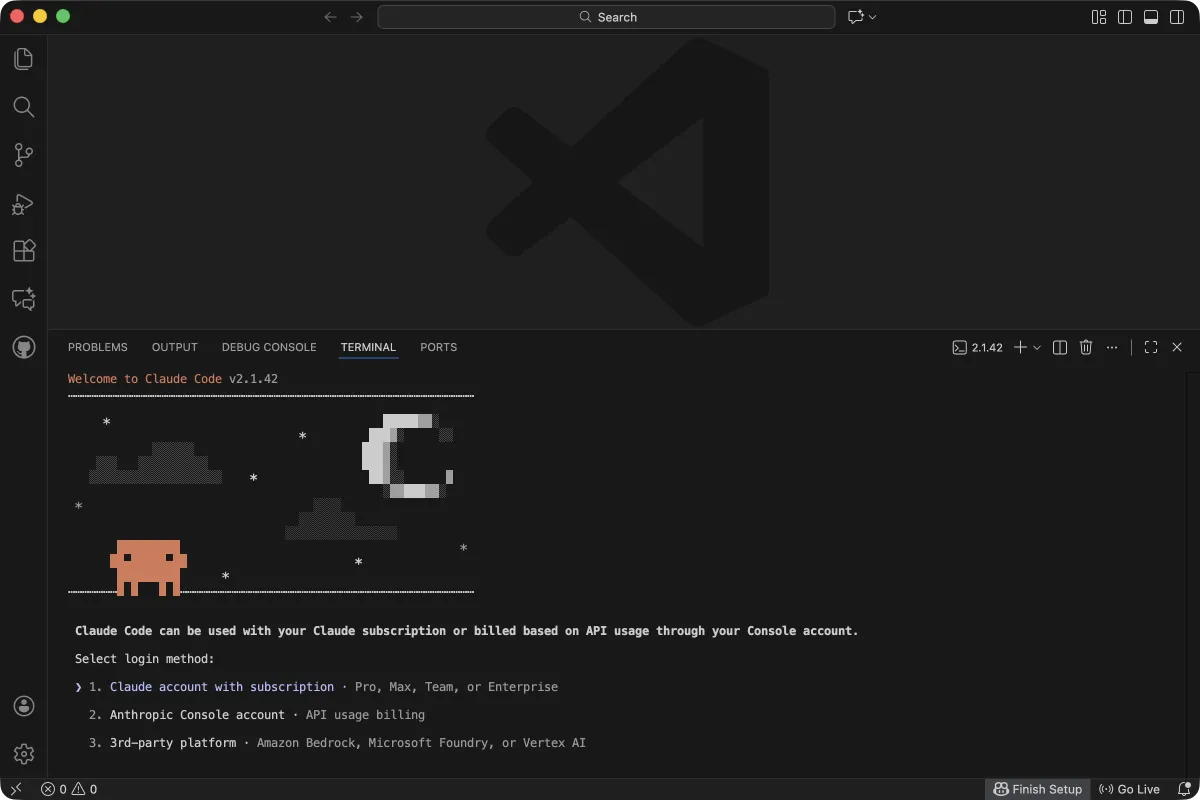
Next up: how you want to log in. You need a Claude Pro, Max, or API account.
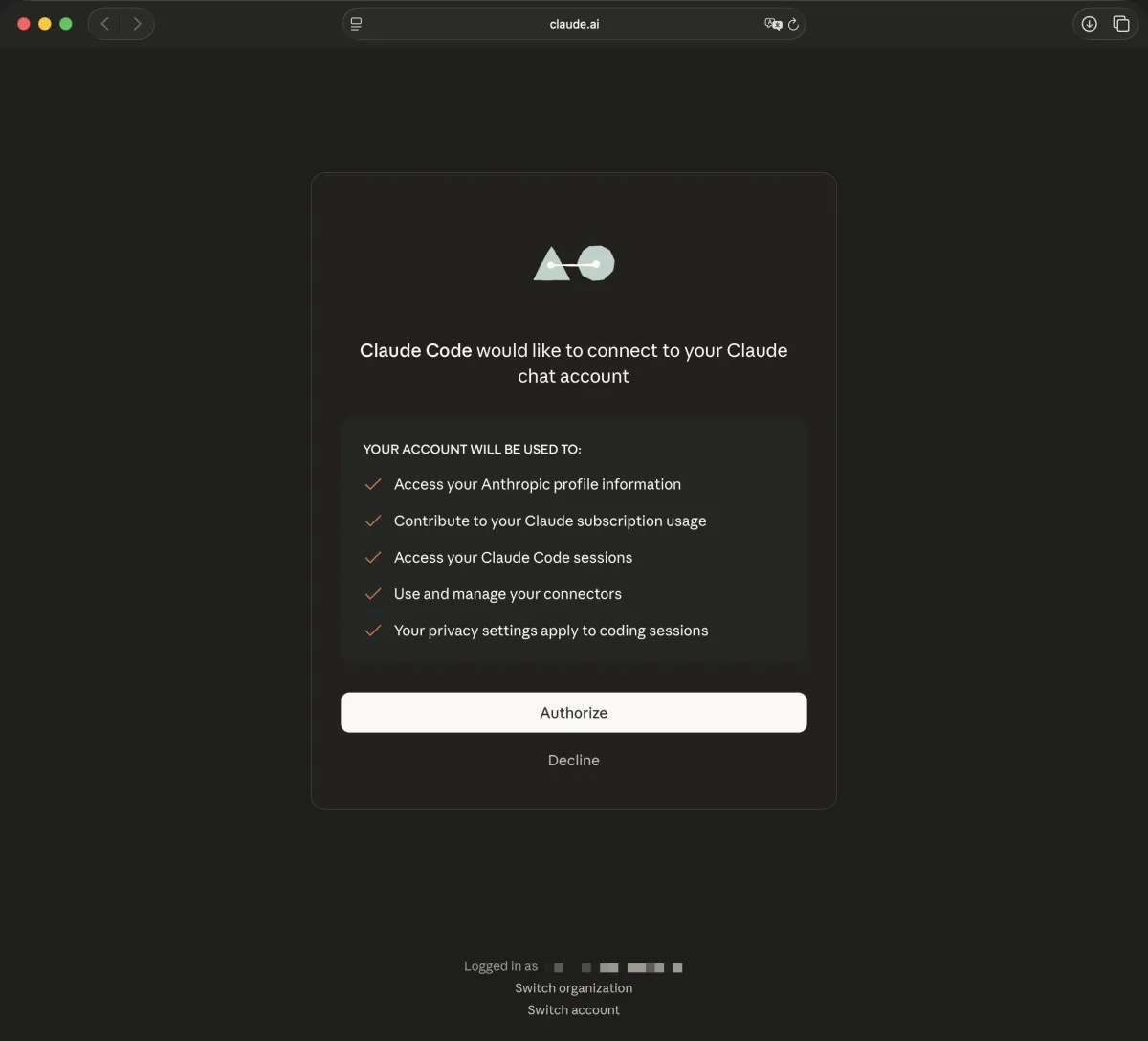
It opens a browser window where you authorize the connection:
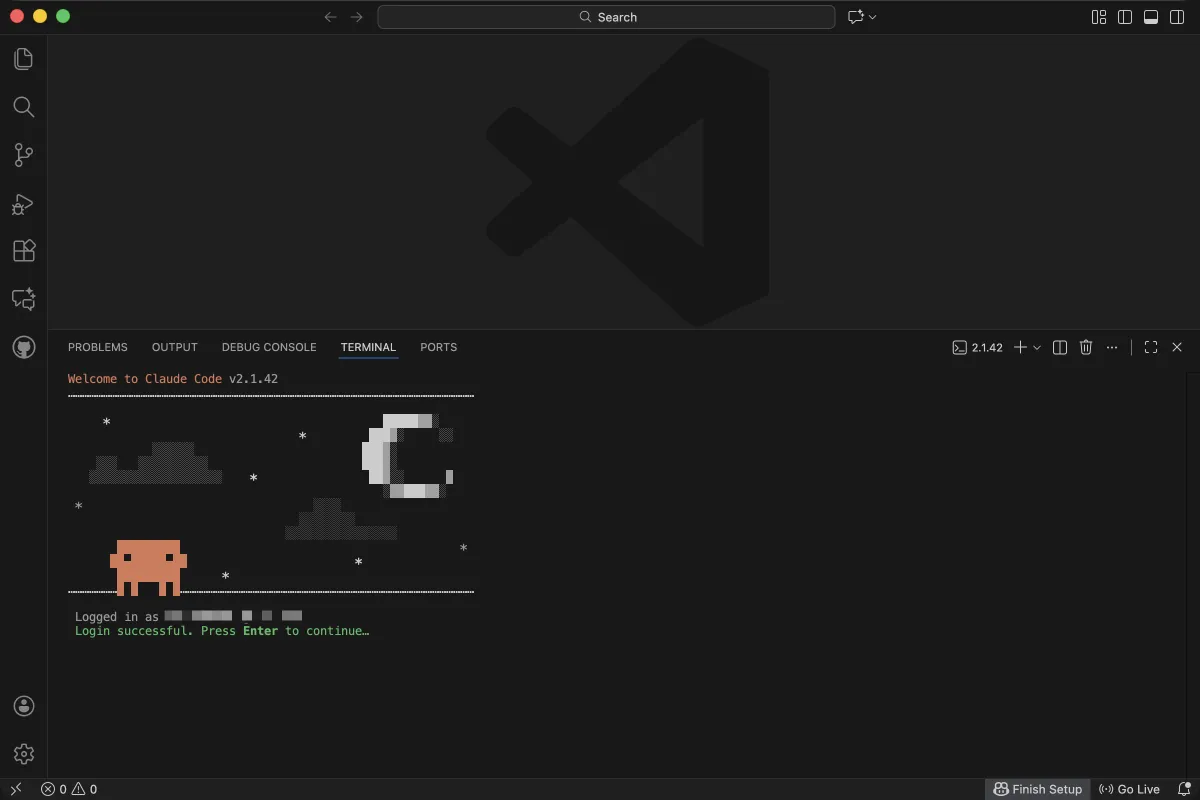
Back in VS Code, it confirms you’re logged in:
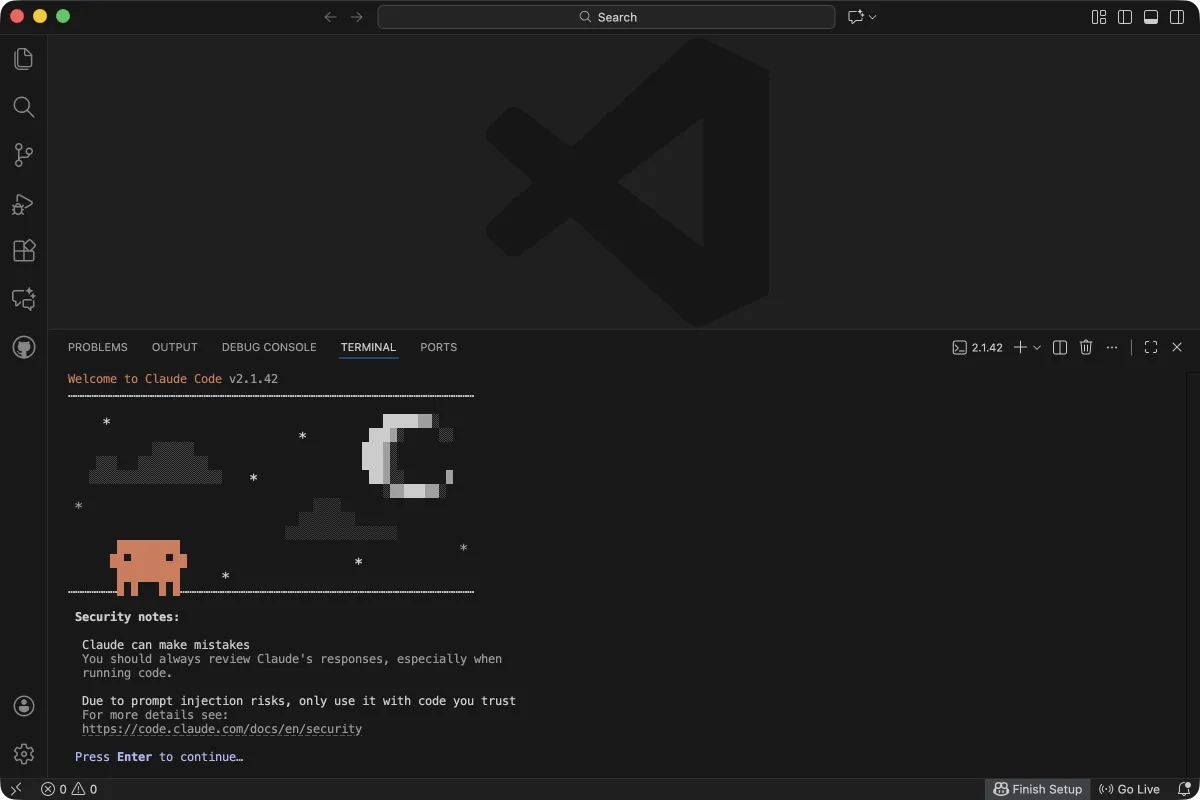
Next it shows security notes. Read them or don’t, then press Enter.
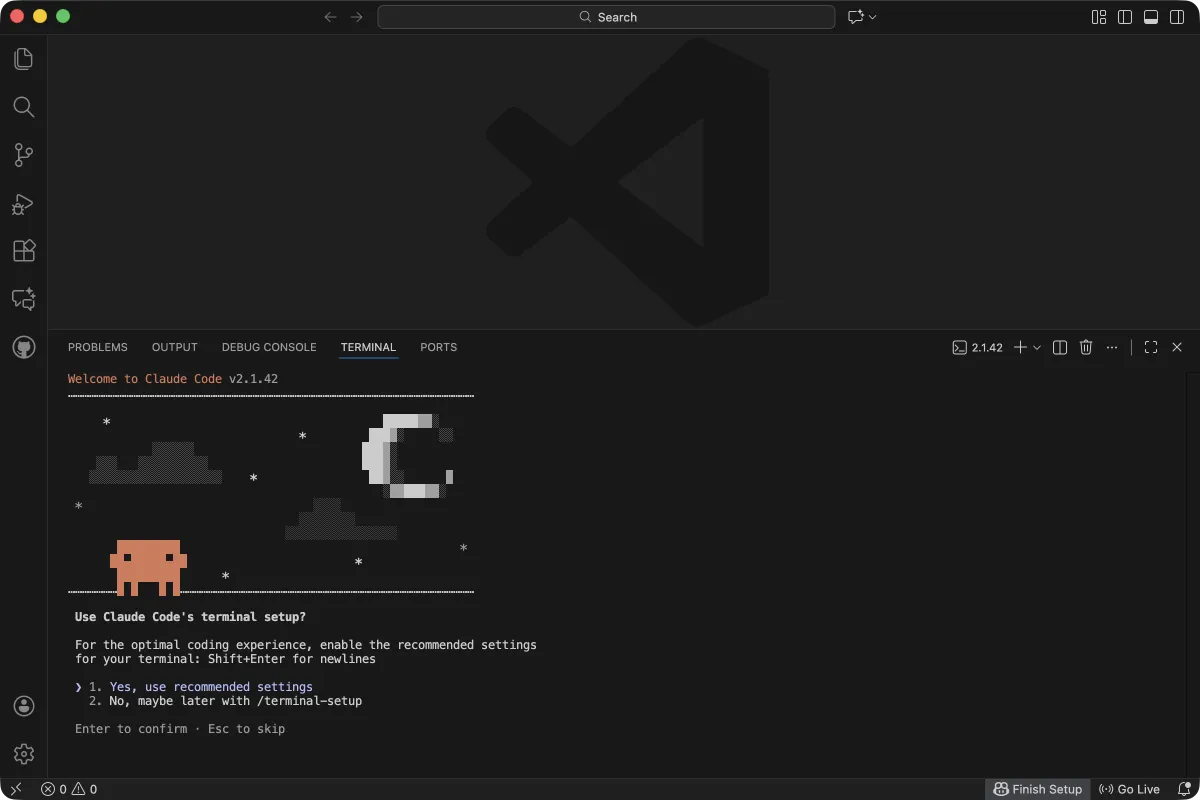
Now it wants to know about terminal settings.
Last step: it checks if you trust the project folder.
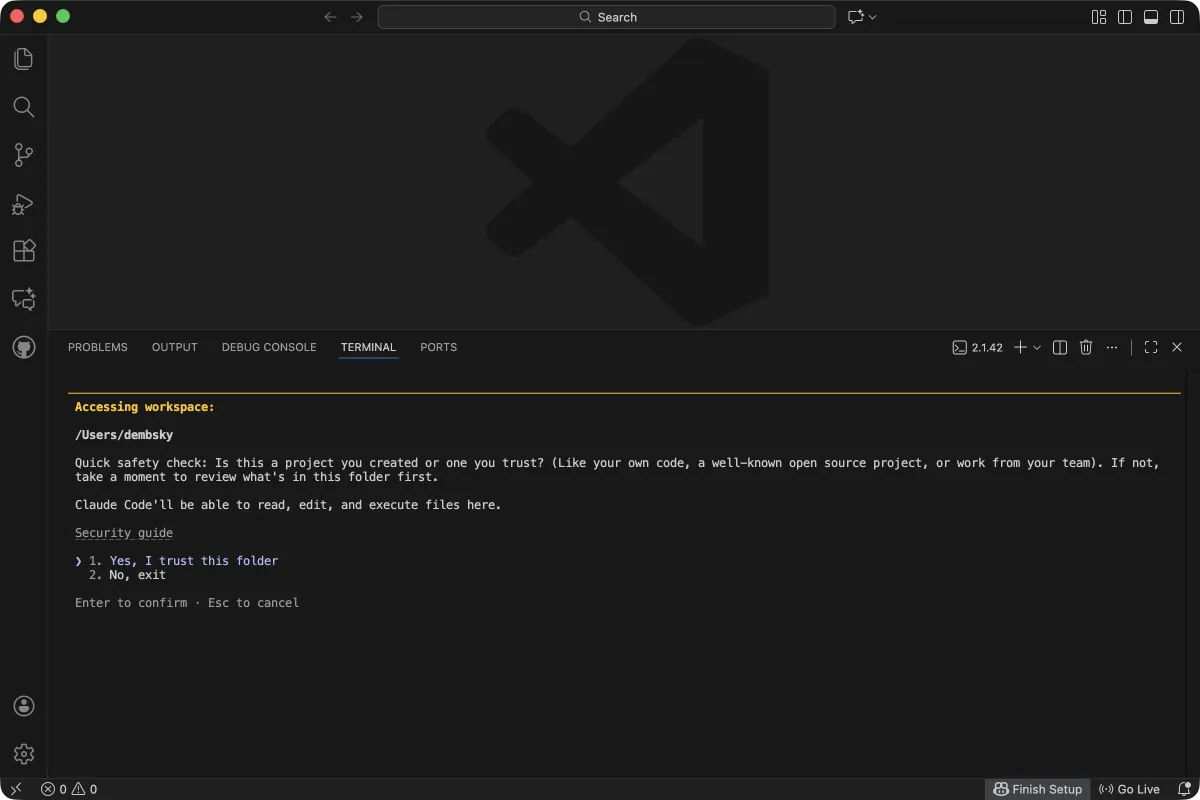
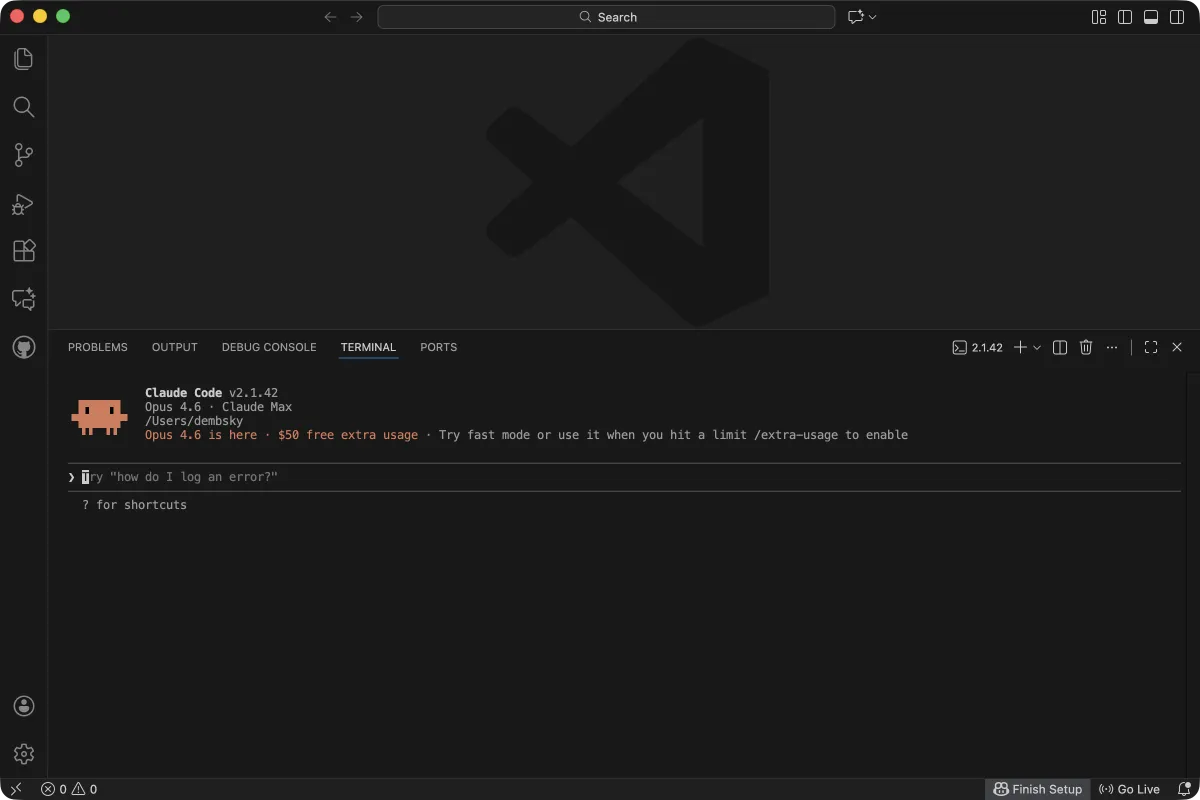
That’s it. You’re in. The whole setup takes about a minute once you’ve done it before.
When things break
“command not found” - Close VS Code, reopen, try again. Works embarrassingly often.
Permission errors - Paste the error into any AI chat and ask for help. That’s what I do.
Login issues - The login opens in your browser. If it’s not working, clear browser cookies, try incognito, log in again.
Anything else - Screenshot the error and paste it into any AI chat. Ask it to help. No shame in that. I do the same thing every day. My entire debugging strategy is asking AI to fix the AI setup.
Summary
Install Claude Code. Type claude in your project folder. When something breaks, screenshot it and ask AI.
If I figured this out as a designer who’s never written a line of code, you’ll be fine. Once you’re up and running, read about what agents actually are - it’ll change how you use Claude Code.
Oh, and for those of us who appreciate readable font sizes: Cmd+= (or Ctrl+= on Windows) zooms in the whole VS Code window, terminal included. Killer feature.